Changing the documentation
The documentation is an mdBook book
built from the Markdown files under docs/. book.toml, at the repository
root, configures it.
Where pages go
docs/user/is the user guide, for people with an Origin Account and for people building apps that sign in with it. Its pages say what SourceOrigin does and how to use it, not how it is implemented.docs/dev/is the contributor guide, for people who change SourceOrigin: development setup, testing, architecture, security, how to extend it, and how it is operated. Operating SourceOrigin belongs here, since only its maintainers run it.docs/SUMMARY.mdis the table of contents. A page it doesn’t list is not published, and a page it lists that doesn’t exist fails the build.- A page about one directory of the repository, such as how to run the browser
tests, may stay a
README.mdin that directory, where GitHub shows it.packages/auth/README.mdalso introduces the TypeScript SDK wherever the package is read on its own.
Some pages are generated from the code, so they can’t fall behind it. Change
their source, then run just docs reference; just test fails while they are
stale:
docs/dev/operations/cli-commands.mdcomes from theauth-servicecommand line’s clap definitions inapps/auth-service/src/cli: their doc comments are also what--helpprints.docs/dev/operations/variables/comes from the doc comments of the variables thatsourceorigin_common::variables!declares, inapps/auth-service/src/configandapps/web/src/main.rs. The configuration page includes them with{{#include}}. Write those doc comments for operators: what the variable does, its format, and whether it is required. The default is added from the code.
.gitattributes marks every generated file, so GitHub collapses it in pull
request diffs: list a new one there too.
Don’t document what explains itself elsewhere. A migration says what it does, and why, in its own SQL comments. A test says what it checks in its name and doc comment. Commit history records how things changed.
Writing
- Update the documentation in the same pull request as the change it describes.
- Describe a feature through each of its surfaces: the settings or developer
console, the admin dashboard, the
auth-serviceCLI and the SDKs. When a task can be done on more than one, show each way, and never present one as the only way. If a surface can’t do it, say so. - Keep a page to one task or topic, and link to the reference rather than repeating it.
- Describe how SourceOrigin works now, not how it changed.
- Write placeholders in prose as
`<name>`or\<name>. A bare<name>is an HTML tag: it hides the text, andjust docsfails.
Style
Write so that someone new to SourceOrigin can follow the page from top to bottom.
- Use the names. SourceOrigin is the project and its site. Origin Auth is its sign-in service: sign-in, the account settings, the developer console, the admin dashboard and the SDKs. A person’s account is an Origin Account.
- Start with the reader’s goal. Open each page with one or two sentences saying what it helps them do.
- Keep sentences short, one idea per paragraph. A sentence that needs a parenthesis and a semicolon is two sentences.
- Show, then explain. Put the command or code first, then say what it does and what the reader should see.
- Number the steps of a procedure. Give each step one action.
- Warn before a command that deletes data or can’t be undone, not after it.
- Cover the main path first. Limits, edge cases and failure modes go at the end of the page, under Troubleshooting or Limits, or in the reference.
- Leave internals out of the user guide. Explain what the reader can see and do; how auth does it belongs in the contributor guide.
- Address the reader as “you”, use the present tense, and write the labels of buttons and fields in bold, exactly as they appear.
- Link a concept where it is first mentioned instead of explaining it again.
For example, rather than:
client rotate-secretissues a secret; earlier ones stay valid for--grace(default 24h, max 30d;0revokes).
write:
Give the app a new secret:
auth-service client rotate-secret notes --grace 24hThe command prints the new secret once. The app’s earlier secrets keep working for 24 hours, so you can switch the app over without downtime.
The user guide’s feature guides share one outline:
# <Feature>

What it does and when to use it, in a sentence or two.

## Before you start

What the reader needs first: an account, a registered app, an SDK.

## <Task>

Numbered steps, through each surface that can do it. Give each task its own
section, named after what the reader does, such as "Rotate a secret".

## Check that it works

## Troubleshooting
Screenshots
Show a page where it helps the reader find their way, such as the first time a
guide uses it, or a step done through a form. The text must still make sense
without the image. Images go in docs/images/<section>/.
Screenshots of auth’s pages are generated, never taken by hand, so they always match the pages. Retake them after changing a page they show:
just docs screenshots
The recipe deploys this checkout to a fresh preview in the docs slot, runs the
specs in tests/browser/screenshots/ against it, then deletes it. It needs what
just preview needs, and Playwright’s Chromium
(pnpm exec playwright install chromium). Each spec signs up an account and
does what its guide does, then saves each page with shoot from
tests/browser/screenshots/docs.ts:
handle('alice')gives a new handle, which every image shows asalice.shoot(page, '<section>/<name>', area)saves the window, 1280 by 800 pixels, in the dark theme, or only the elementarea, asdocs/images/<section>/<name>.png. It first replaces what changes from run to run: handles, the preview’s hosts, IDs, dates, addresses and trace IDs.
An image is rewritten only when its page looks different, so a run that changes
nothing leaves docs/images untouched. The browser suite never runs these
specs, and neither does CI.
Screenshots of other services, such as GitHub’s or Google’s consoles, are taken by hand: keep them few, since those pages change without notice.
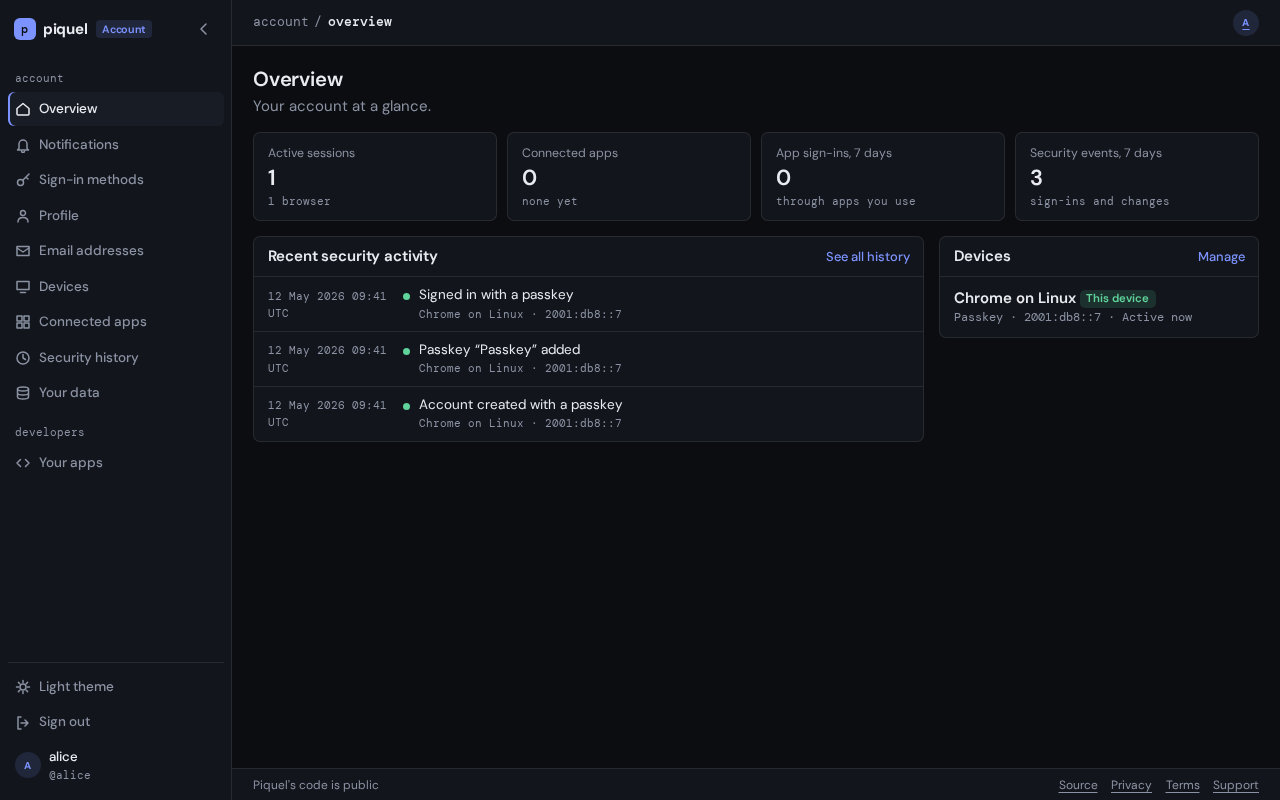
Give each image alt text that says what it shows, for readers who can’t see it:
Links
- Link to another page with its path relative to the current page. From a
page in
docs/user/apps/, for example, the OpenID Connect reference is[claims](../reference/oidc.md#authentication-claims). These links work both on GitHub and in the book. - Link to a repository file outside
docs/with its GitHub URL onmain, such ashttps://github.com/sourceorigin-dev/sourceorigin/blob/main/infra/piqueld.toml(treeinstead ofblobfor a directory). A relative path would break in the book. The link check resolves these URLs against your checkout, so the file must exist on your branch, and fails links to any other branch or commit. - Code comments name a page by its path from the repository root, such as
docs/dev/architecture/sdk.md. Update them when you move a page. - A heading’s anchor is its text in lower case, with spaces replaced by hyphens and punctuation removed. Renaming a heading breaks the links to it; the link check finds them.
Building and checking
just install-tools installs mdBook and lychee, at the versions CI uses.
just docs serve   # serves the book on localhost:3000, rebuilding on every change
just docs         # builds the book into target/book and checks it
just docs fails on any mdBook warning, then checks with
lychee every link and heading anchor in the built
book and in the repository’s other Markdown files, such as README.md. It
works offline, so it doesn’t check links to other websites; CI would otherwise
fail whenever one of them is down.
The docs CI job runs just docs on every pull request, because a change
anywhere in the repository can break a link to it.
Every deployment publishes the book of its own commit: production at
https://docs.sourceorigin.dev, staging at docs.staging.sourceorigin.dev, and just preview
at the docs-<slug>.dev.sourceorigin.dev it prints. See
documentation.